Canon PowerShot A10Canon introduces a "value priced, full featured" 1.3 megapixel with 3x zoom lens and great image quality!<<Operation & User Interface :(Previous) | (Next): Image Storage & Interface>> Page 9:Camera Modes & MenusReview First Posted: 5/16/2001 |
Camera Modes and Menus
 Stitch-Assist Mode: Marked on the Mode dial with the dual frame, panorama symbol, this mode allows you to capture as many as 26 sequential images to be "stitched" together into one panoramic image on a computer. All of the exposure features are available, with the exception of the Auto and Red-Eye Reduction flash modes, digital zoom, Continuous Shooting, and the Self-Timer.
 Manual Mode: Labeled on the Mode dial with a red camera symbol and an "M," Manual mode increases the user's exposure control to include White Balance and Exposure Compensation settings, as well as the Continuous Shooting mode.
 Automatic Mode: The first Shooting mode on the Mode dial, labeled with only a red camera symbol, Automatic places the camera in complete control over exposure settings. The user can set the Flash mode, Focus mode, the Self-Timer, image Resolution and Compression, and Zoom.
 Playback Mode: Indicated by the traditional playback symbol on the Mode dial (an arrow head inside a box), Playback mode allows you to scroll through captured images, delete them, protect them, set them up for printing on a DPOF device, rotate them, enlarge them to inspect details, or view images in an automatic slide show.
Record Menu: The following menu options are available by pressing the Menu button in any record mode:
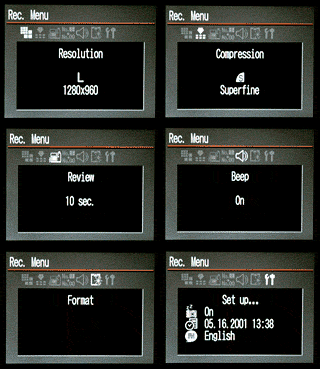 Resolution:
Sets the image resolution size to Large (1,280 x 960 pixels), Medium (1,024
x 768 pixels), or Small (640 x 480 pixels).
Resolution:
Sets the image resolution size to Large (1,280 x 960 pixels), Medium (1,024
x 768 pixels), or Small (640 x 480 pixels).
- Compression: Determines the amount of JPEG compression, with options
of Superfine, Fine, and Normal.
- Review: Sets the Instant Review function to Off, 2 seconds, or 10
seconds.
- File No. Reset: Instructs the camera to reset file numbering with
each new CompactFlash card (On), or to continue in the series (Off).
- Beep: Turns the camera's beep sound on or off.
- Format: Formats the CompactFlash card, in all modes except Stitch-Assist.
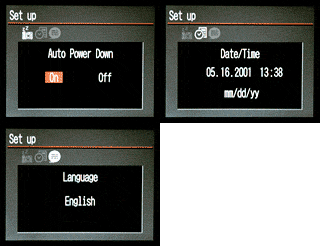 Setup:
Displays the Setup menu. Pressing the Set button provides access to the Setup
menu options:
Setup:
Displays the Setup menu. Pressing the Set button provides access to the Setup
menu options:
- Auto Power Down: Turns the camera's automatic shutoff feature on or off.
- Date/Time: Sets the camera's internal clock and calendar, with a display format option.
- Video System: Establishes the Video Out signal as NTSC or PAL.
- Language: Changes the menu language to English, French, Japanese,
German, or Spanish.
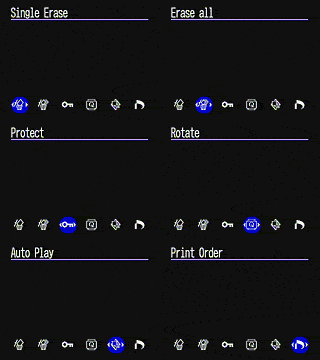 Playback
Menu: This settings menu is displayed by pressing the Menu button in Playback
mode:
Playback
Menu: This settings menu is displayed by pressing the Menu button in Playback
mode:
- Single Erase: Erases the currently displayed image, or the currently
selected image in the index display.
- Erase All: Erases all images from the CompactFlash card, except for write-protected ones.
- Protect: Write-protects individual images, preventing them from being accidentally erased or manipulated in any other way (except through card formatting).
- Rotate: Rotates the current image 90 or 270 degrees clockwise in the display (rotation is not saved with the image).
- Auto Play: Activates and deactivates the automatic slide show. Pressing the Set button once starts the slide show, and pressing it a second time allows you to review images one at a time.
- Print Order: Marks individual images for printing on DPOF compatible devices, also allows the user to set the layout and whether or not the date and time prints with the image. (This menu is fairly complicated and requires following instructions in the Camera User Guide very closely.)


Follow Imaging Resource: