Olympus C-4000 ZoomOlympus introduces a top-of-the-line four-megapixel model with superb *configurability* great image quality, and an impressively low price.<<Design :(Previous) | (Next): Optics>> Page 4:ViewfinderReview First Posted: 8/27/2002 |
Viewfinder
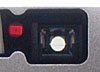 The
C-4000 Zoom offers both a real-image optical viewfinder and a rear panel, 1.8-inch,
114,000 pixel, TFT color LCD screen. The optical viewfinder accommodates eyeglass
wearers with a diopter correction adjustment and a comfortably high eyepoint,
leaving a reasonable amount of room between your eye and the finder for an eyeglass
lens to fit. Although the optical viewfinder zooms along with the lens, it does
not show the operation of the digital zoom, which can only be enabled when the
LCD monitor is on. A set of four lines in the center of the field of view mark
the autofocus area, and help you center your subjects. Two LED indicators (one
orange and one green) are adjacent to the viewfinder window, indicating camera
status with either glowing or blinking lights. If the green LED blinks, the
camera is either having trouble focusing, or there's a problem with the SmartMedia
card. A solid green LED indicates that focus is set and the camera is ready
to snap the picture. A flashing orange LED means that the flash is still charging
or there is a potential of camera shake, while a solid orange LED shows that
the flash is fully charged and ready to fire.
The
C-4000 Zoom offers both a real-image optical viewfinder and a rear panel, 1.8-inch,
114,000 pixel, TFT color LCD screen. The optical viewfinder accommodates eyeglass
wearers with a diopter correction adjustment and a comfortably high eyepoint,
leaving a reasonable amount of room between your eye and the finder for an eyeglass
lens to fit. Although the optical viewfinder zooms along with the lens, it does
not show the operation of the digital zoom, which can only be enabled when the
LCD monitor is on. A set of four lines in the center of the field of view mark
the autofocus area, and help you center your subjects. Two LED indicators (one
orange and one green) are adjacent to the viewfinder window, indicating camera
status with either glowing or blinking lights. If the green LED blinks, the
camera is either having trouble focusing, or there's a problem with the SmartMedia
card. A solid green LED indicates that focus is set and the camera is ready
to snap the picture. A flashing orange LED means that the flash is still charging
or there is a potential of camera shake, while a solid orange LED shows that
the flash is fully charged and ready to fire.
 The
C-4000 Zoom's LCD monitor provides detailed information about a number of exposure
settings, including the currently selected f/stop, shutter speed, and exposure
compensation adjustments across the top of the screen. In Aperture and Shutter
Priority modes, the chosen aperture or shutter speed appears as a manually-set
constant, while the second, automatically determined exposure value updates
continuously in response to scene lighting and the exposure compensation setting.
In Manual mode, the camera displays both the selected f/stop and shutter speed
values (adjustable with the left / right and up / down Arrow buttons, respectively),
while the exposure compensation readout serves as an exposure display, showing
the amount the camera thinks your settings will over- or underexpose the subject.
(The exposure display turns red if your chosen exposure is more than 3 EV units
away from what the camera calculates to be correct.)
The
C-4000 Zoom's LCD monitor provides detailed information about a number of exposure
settings, including the currently selected f/stop, shutter speed, and exposure
compensation adjustments across the top of the screen. In Aperture and Shutter
Priority modes, the chosen aperture or shutter speed appears as a manually-set
constant, while the second, automatically determined exposure value updates
continuously in response to scene lighting and the exposure compensation setting.
In Manual mode, the camera displays both the selected f/stop and shutter speed
values (adjustable with the left / right and up / down Arrow buttons, respectively),
while the exposure compensation readout serves as an exposure display, showing
the amount the camera thinks your settings will over- or underexpose the subject.
(The exposure display turns red if your chosen exposure is more than 3 EV units
away from what the camera calculates to be correct.)
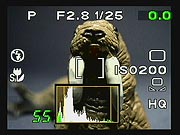 The
C-4000 Zoom also offers a "live" histogram display, which automatically
appears in the LCD display in any automatic exposure mode (that is, in Program,
Aperture, or Shutter Priority exposure modes), when enabled through the LCD
menu. The histogram gives you an idea of how over- or underexposed the captured
image is, by graphing the tonal distribution from highlights to shadows. You
can also view the histogram in Playback mode, along with the exposure information
for each previously-captured image.
The
C-4000 Zoom also offers a "live" histogram display, which automatically
appears in the LCD display in any automatic exposure mode (that is, in Program,
Aperture, or Shutter Priority exposure modes), when enabled through the LCD
menu. The histogram gives you an idea of how over- or underexposed the captured
image is, by graphing the tonal distribution from highlights to shadows. You
can also view the histogram in Playback mode, along with the exposure information
for each previously-captured image.
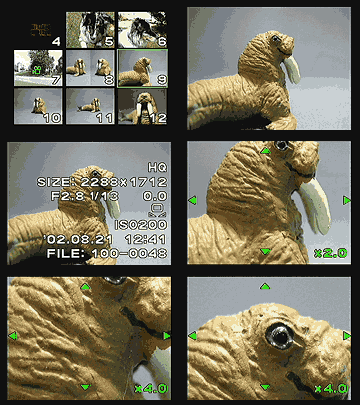 When
using the LCD monitor to review captured images, you can zoom in on displayed
images up to 4x, and then scroll around the enlarged image using the Arrow buttons.
This is very handy for checking focus, small details, or precise framing. There's
also an Index display option, which shows either four, nine, or 16 thumbnail
images at a time. A very handy "Quick View" function also lets you
switch quickly from shooting to playback mode by pressing the Display button
twice in rapid succession. The camera will display the most recently captured
image on the LCD screen, but you have essentially all of the playback-mode options
available to you, and can scroll back and forth to other images, zoom in and
out on them, and call up the information display. You can revert to shooting
mode either by pressing the Display button again, or simply by half-pressing
the shutter button.
When
using the LCD monitor to review captured images, you can zoom in on displayed
images up to 4x, and then scroll around the enlarged image using the Arrow buttons.
This is very handy for checking focus, small details, or precise framing. There's
also an Index display option, which shows either four, nine, or 16 thumbnail
images at a time. A very handy "Quick View" function also lets you
switch quickly from shooting to playback mode by pressing the Display button
twice in rapid succession. The camera will display the most recently captured
image on the LCD screen, but you have essentially all of the playback-mode options
available to you, and can scroll back and forth to other images, zoom in and
out on them, and call up the information display. You can revert to shooting
mode either by pressing the Display button again, or simply by half-pressing
the shutter button.
A Record View function, enabled through the Shooting menu (Setup sub-menu), displays the most recently captured image on the LCD screen while the image is being recorded to the memory card. This feature gives you the option of deleting an image instantly by pressing the Flash / Delete button while the review image is still onscreen. It's a great way to check your images without spending time switching back and forth between Playback and Shooting modes.


Follow Imaging Resource: